Posts

When reading the WMI class Win32_LogicalFileSecuritySetting the SACL property is null
Image
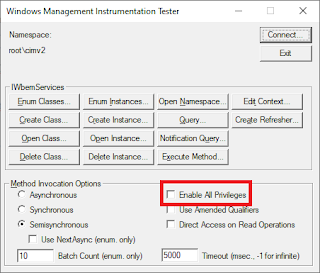
When you try and read the NTFS audit permissions of a file or folder using WMI with the class Win32_LogicalFileSecuritySetting the SACL property is null. This can be because the user executing the command doesn't have the SeSecurityPrivilege. PowerShell The following command will work correctly with PowerShell as long as the user running the command has the SeSecurityPrivilege - with UAC enable PowerShell will need to be run elevated by right clicking PowerShell and selecting Run as Administrator. $securitySetting = Get-CimInstance -ClassName "Win32_LogicalFileSecuritySetting" -Filter "Path='c:\\temp'"; $securityDescriptor = Invoke-CimMethod -InputObject $securitySetting -MethodName "GetSecurityDescriptor"; $securityDescriptor.Descriptor.SACL; Wbemtest When using the WBEMTEST utility you'll need to make sure you are running as an Administrator and also tick Enable all privileges checkbox. C#.NET When using C#.NET and the WMI classes in Syst...
CRITICAL Microsoft Azure Bug - unexpected charges on deleted resources

Image
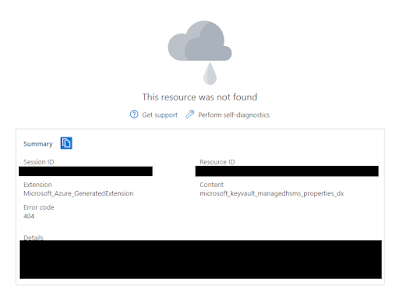
We've recently been working on latest Azure agent for our network documentation tool XIA Configuration Server . We have multiple Azure environments including production, development and test one of which is a small Microsoft Partner Network tenant which includes Microsoft Action Pack credits for Azure. As part of the testing we created multiple resource types in the tenant including a Key Vault Managed HSM .  The resource was expensive so was deleted when testing was complete. Unfortunately there seems to be a critical bug in Azure (perhaps related to the HSM module only), whereby we're seeing hundreds of £ of charges accumulating a few hours. The issue was reported to Microsoft who acknowledge there may be an issue but refused to resolve the issue or even look into it until a credit card is assigned to the subscription and the spending limit removed. We refused to assign a corporate card to the subscription on the grounds that exposes to to unlimited financial risk from this b...

Opening Internet Explorer on Windows 10, Windows 11, and Windows Server 2022 closes Internet Explorer and Opens Microsoft Edge

Image
Internet Explorer is now dated and a security risk - being replaced by Microsoft Edge. https://docs.microsoft.com/en-us/lifecycle/faq/internet-explorer-microsoft-edge However, Internet Explorer is the only browser built into Windows Server 2012 R2, Windows Server 2016, and Windows Server 2019 so you may still wish to test your product against the browser even just to ensure that your product degrades gracefully or denies access if the user is using Internet Explorer. However, when you try to open Internet Explorer on Windows 10, Windows 11, and Windows Server 2022 you find that the operating system closes Internet Explorer and opens Microsoft Edge instead. To prevent this from happening and allow Internet Explorer to open Start Microsoft Edge Go to settings Select Default Browser Change the Let Internet Explorer open sites in Microsoft Edge setting.

Get-WebApp and the Azure REST API return a siteConfig object with null properties and is missing data

Image
There seems to be a weird bug in the Azure AZ PowerShell API and the underlying REST API whereby when you list the App Services, also known as Web Apps, also known as Sites you find that the SiteConfig property contains null values and is generally missing information. However if you run the Get-WebApp with the -ResourceGroupName and the -Name parameters the SiteConfig property is populated. A similar issue is found when using the Azure REST API  /subscriptions/ subscription identifier /resourceGroups/ resource group name /providers/Microsoft.Web/sites/ web site name The return value's properties.siteConfig is also missing information. Using Fiddler to see how Get-WebApp is working - when you call with the -ResourceGroupName and -Name parameters the cmdlet is making multiple REST API calls and combining the information together. From here we find that to get the SiteConfig information you can make a GET request to the REST API here /subscriptions/ subscription identifier /reso...

Remove HP Support Assistant Quick Access icon from the Windows taskbar system tray/toolbar

Image
 When using a Hewlett Packard (HP) machine and you use the HP Support Assistant that a "Question Mark" icon appears in the toolbar / system tray area of the Windows taskbar. Right clicking the taskbar and selecting Toolbars > HP Support Assistant Quick Access removes the icon, but it is recreated the next time the HP Support Assistant is loaded. To resolve this open the HP Support Assistant click the settings "Gear" icon, click "More Settings" and untick the "Display application icon in the taskbar (recommended)". Alternatively the following registry entry can be set HKEY_LOCAL_MACHINE\SOFTWARE\WOW6432Node\HP\HPActiveSupport\HPSF NotifyTray 0

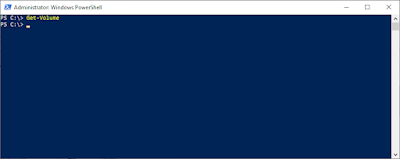
PowerShell Get-Volume cmdlet and Windows Server Manager show no volumes on Windows 10, Windows Server 2016, and above.

Image
When you use the PowerShell Get-Volume cmdlet or Windows Server Manager you notice that no volumes are shown on Windows 10, Windows Server 2016, and above. You'll notice that this doesn't apply to Windows Server 2012 and Windows Server 2012 R2. This error can occur when the "Microsoft Storage Spaces SMP" service (smphost) is disabled or when the user is not an Administrator. The Microsoft advice is to not disable this service.

AdvancedInstaller "800703fa Illegal operation attempted on a registry key that has been marked for deletion" and setting LoadUserProfile process model setting.

Image
 If you are running an IIS ASP.NET application with a custom user account you may see the following error Retrieving the COM class factory for component with CLSID {<GUID>} failed due to the following error: 800703fa Illegal operation attempted on a registry key that has been marked for deletion.   This occurs because the custom user's profile has been unloaded by the system but IIS is still trying to access it. This can be solved by setting the Process Model > Load User Profile setting. When using AdvancedInstaller there is no direct configuration setting in the user interface. But setting this property is actually simple. Goto the IIS > Application Pools > Application Pool  > Custom Properties And add the following