Posts

Use Get-Acl and Set-Acl with a specified Active Directory domain controller using PSDrive

Image
When you use Active Directory commands such as Get-ADObject and Get-ADUser you'll notice there is a -Server switch you can use to specify a domain controller to use for the operation. This switch isn't however available for the Get-Acl and Set-Acl commands. You may want to use a specific domain controller for example if you're setting the security descriptor of an object you've just created and the object may not have replicated yet. Get-Acl and Set-Acl however use the Active Directory PSDrive AD: which performs a serverless bind when you run the Import-Module ActiveDirectory command as you can see in the screenshot. PSDrive created Running the command Get-PSDrive AD displays the following, showing that the default AD: drive does not have a server specified. No Server Specified Changing the default AD: drive probably isn't a good idea however we can create a new drive. New-PSDrive -Name AD2 -PSProvider ActiveDirectory -Server "demo2022-dc02" -Scope "...

Get the name of the Active Directory object referenced in the InheritedObjectType property of an ActiveDirectoryAccessRule using PowerShell

Image
You may find when you access the nTSecurityDescriptor property using the Active Directory PowerShell cmdlets it returns a System.DirectoryServices.ActiveDirectoryAccessRule object that has a InheritedObjectType property set to a GUID value. ActiveDirectoryRights : Self, WriteProperty InheritanceType       : Descendents ObjectType            : 00000000-0000-0000-0000-000000000000 InheritedObjectType   : bf967aba-0de6-11d0-a285-00aa003049e2 ObjectFlags           : InheritedObjectAceTypePresent AccessControlType     : Allow IdentityReference     : NT AUTHORITY\BATCH IsInherited           : False InheritanceFlags      : ContainerInherit PropagationFlags      : InheritOnly This corresponds to the applies to  inheritance and propagation settings on the security object, defining the types of desce...

Delete a Windows registry value using a .reg file

Image
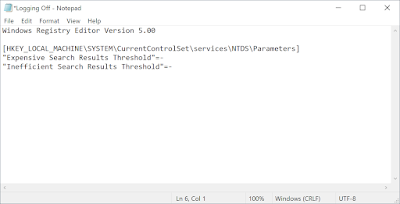
If you want to delete a Windows registry value using a .reg file you can enter the value as a minus - sign. For example: Windows Registry Editor Version 5.00 [HKEY_LOCAL_MACHINE\SYSTEM\CurrentControlSet\services\NTDS\Parameters] "Expensive Search Results Threshold"=- "Inefficient Search Results Threshold"=- While you're here - Why not check out our Windows Server Documentation and Audit Tool?

SOLVED: You get a blue screen error 0XC00002E2 on a Windows domain controller after a Windows update

Image
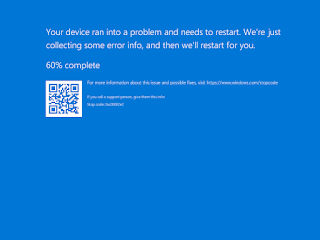
You may experience a blue screen error 0XC00002E2 on a Windows domain controller after a Windows update. When the server reboots select Troubleshoot Then Startup Settings Then click Reboot At the prompt select Directory Services Repair Mode When the server reboots login using the Active Directory restore mode password . From a command prompt enter ntdsutil activate instance ntds files integrity This may display information similar to the following Could not initialize the Jet engine: Jet Error -501. Failed to open DIT for AD DS/LDS instance NTDS. Error -2147418113. This indicates that the NTDS database is corrupt. Then enter the following at the same prompt to view information on the NTDS files. info To resolve the issue from a command prompt enter the following ** WARNING ** ensure you have a full system backup before proceeding. del c:\windows\ntds\*.log Reboot the server.  While you're here - Why not check out our Windows Server Documentation and Audit Tool?

Get the WMI queries used in a Group Policy object with PowerShell

Image
You can easily read the Group Policy objects in a domain using PowerShell *(if the Group Policy Management Console feature is installed). Each Group Policy object can have a WMI filter assigned to them which are actually stored as separate objects. You can read the WMI filter setting using PowerShell with the following commands $gpo = Get-GPO "Default Domain Policy"; $gpo.WmiFilter|SELECT * However this doesn't show the actual WMI queries Luckily this can be solved easily by calling the GetQueryList() method on the WMI filter itself. $gpo = Get-GPO "Default Domain Policy"; $gpo.WmiFilter.GetQueryList(); The WmiFilter object is actually a .NET type Microsoft.GroupPolicy.WmiFilter - the methods of which are documented here. https://learn.microsoft.com/en-us/previous-versions/windows/desktop/wmi_v2/class-library/wmifilter-class-microsoft-grouppolicy  While you're here - Why not check out our  Group Policy Audit and Documentation Tool ?

NT SERVICE\TrustedInstaller is missing - the following name cannot be found: "TrustedInstaller".

Image
When you try and assign permissions to the built-in TrustedInstaller account you may see the following error, An object (User, Group, or Built-in security principal) with the following name cannot be found: "TrustedInstaller". This error can occur when  The domain is selected in the "From this location" field - ensure that this is set to the computer account. The account name is entered as "TrustedInstaller" - ensure this is entered as "NT Service\TrustedInstaller". Then click Check Names.  While you're here - Why not check out our Windows Server Documentation and Audit Tool?

Search inside text or XML file contents using Windows Explorer in Windows 10 and Windows 11

Image
If you want to search inside XML files in Windows 10 or Windows 11 using Windows Explorer this can be done easily. Firstly your XML file may look like this. Sample XML file Enter the search in the search box. Search results without the file shown If no results are found ensure that "File Contents" is selected in the "Search Options" drop down.  Search results with file contents enabled  While you're here - Why not check out our Windows Server Documentation and Audit Tool?